How to Check If Your Website Is Indexed on Google (Free, Step by Step)
Written by Fathimath Nafha, freelance digital marketer in Kasaragod who helps small businesses get found on Google.
Last updated:30 September 2026
A website can be live, fast and beautiful, and still be invisible on Google. Before I work on rankings for any site, including my own, I ask one basic question first: does Google actually have this page on record?
Here is how I check that with free tools, and what I found when I checked my own website.
What "indexed" means
Think of a new shop that has opened its doors but hasn’t been added to any map app yet. Customers walking past can see it, but people searching online cannot find it.
Indexing is Google adding your page to its map. Until that happens, the page cannot appear for any search. Once it happens, the page can appear, though where it appears is a separate question.
Step 1: The ten-second peek
Open Google and search for site: followed by your domain, with no space. Mine looks like site:fathimathnafha.com.
If pages from your website show up, Google knows about at least some of them. If you get nothing, do not panic yet. This search is a rough peek and it can leave out pages Google does have. I only use it to get a first impression.

Step 2: Ask Google directly
The most reliable check is the URL Inspection tool in Google Search Console, which is free.
- Open Search Console and choose your website.
- Paste the full page address into the bar at the top.
- Read the answer.
When I inspected my homepage, the answer was “URL is on Google.” That was good to see, and it also showed that I had already asked Google to index the page.
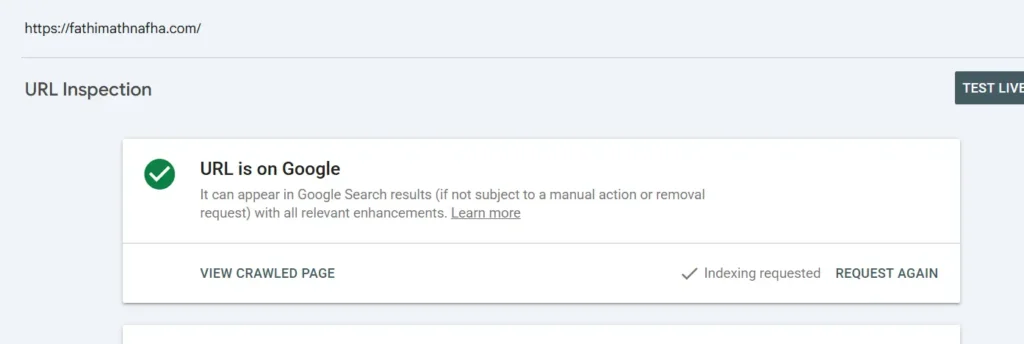
If yours says the page is not on Google, scroll down. Google usually explains why.
Step 3: Look at the whole website
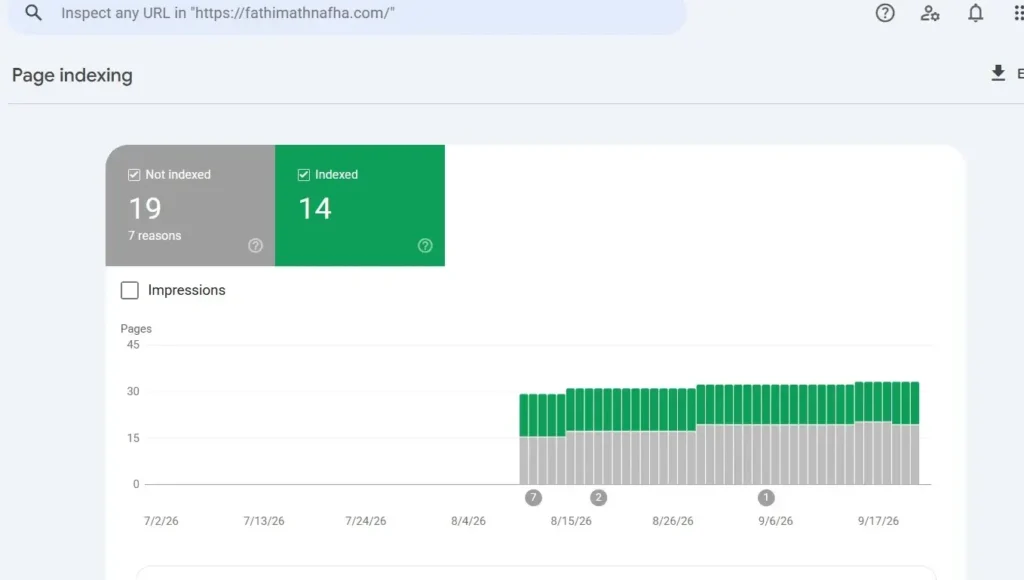
On my website, the Pages report showed 14 pages indexed and 19 not indexed, across 7 different reasons. Seeing “19 not indexed” felt uncomfortable at first, but when I opened each reason and checked the addresses listed, nearly all of them were not pages I wanted people to find. Many were files WordPress creates automatically, such as RSS feed addresses and a script file. One was the old address of a page I had already replaced with a new, clearer one. The pages that matter most, including my homepage, are indexed.
Reading the reasons without panic
You will see labels like these, and they usually mean the following.
Discovered, currently not indexed means Google has heard about the page but has not visited yet. Linking to it from your other pages can help.
Crawled, currently not indexed means Google visited and decided not to keep it. This is a signal to make the page more useful, more specific, and different from your other pages.
Excluded by noindex means a setting on the page is telling Google to skip it. If the page matters, remove that setting.
Blocked by robots.txt means a rule on your website is keeping Google out. Check it before assuming anything else.
Two files worth opening
robots.txt. Type your domain followed by /robots.txt in your browser. Mine only keeps crawlers out of the WordPress admin area and points to my sitemap, which is normal. The line to watch for is Disallow: / under User-agent: *, because that blocks everything.
Your sitemap. This is a list of the pages you want Google to know about. Mine sits at /sitemap_index.xml. Submitting it in Search Console helps Google find pages, but it does not force Google to keep them.
About “Request indexing”
After fixing a real problem, you can click Request indexing in the URL Inspection tool. This is a polite request, and Google decides what to do with it. Sending it again and again does not speed things up, and it does not improve your ranking.
Indexed is not the same as ranking
Even a page that is indexed can sit far down the results. Being on Google’s map only gets you into the race. Useful content, clear titles and trust are what help you move up, and that comes after the checks above.
The short version
- Peek with
site:. - Confirm with URL Inspection.
- Study the Pages report.
- Read the reasons, fix the real problems, then request indexing.
Want a second opinion?
If some of your pages are stuck as “not indexed” and you are unsure why, send me your website address and I will take a look .